
Zoom vs. Microsoft Teams vs. Google Meet: Which is Best for Remote Work?
We tested the “Big Three” video conferencing platforms on performance, features, and ease of use to help you decide which one deserves a spot in your remote workflow.
The Battle for Your Screen Time
In the last few years, “You’re on mute” has become the catchphrase of the modern workplace. But as remote and hybrid work models solidify, the tools we use have evolved from simple video chat apps into full-blown collaboration ecosystems.
Choosing the right platform isn’t just about video quality anymore. It’s about how well it integrates with your calendar, how secure it is, and whether it drains your laptop battery in an hour. If you are still figuring out your remote environment, you might want to check our guide on how to stay focused while working from home.
In this comprehensive comparison, we are pitting the three heavyweights against each other: Zoom (the user-friendly giant), Microsoft Teams (the corporate powerhouse), and Google Meet (the browser-based contender).
Quick Comparison: At a Glance
| Feature | Zoom | Microsoft Teams | Google Meet |
|---|---|---|---|
| Best For | Ease of use & external calls | Internal corporate collaboration | G-Suite users & simplicity |
| Free Limit | 40 mins (100 participants) | 60 mins (100 participants) | 60 mins (100 participants) |
| Installation | Desktop App Recommended | Heavy Desktop App | Browser-Based (No Install) |
| Video Quality | High (1080p optimized) | Good (Resource heavy) | Good (Variable) |
| Ecosystem | Standalone + Integrations | Microsoft 365 Deep Integration | Google Workspace |
1. Zoom: The King of Reliability
Zoom became a verb for a reason. Its primary selling point is that it just works. Whether you are tech-savvy or a complete beginner, Zoom offers the lowest barrier to entry. It handles poor internet connections better than its competitors and offers industry-leading video compression.
However, it is a standalone tool. While it integrates with everything, it doesn’t have the native “document collaboration” feel of Teams or Meet.
✅ Pros
- Superior video and audio compression.
- “Touch Up My Appearance” and advanced filters.
- Extremely intuitive interface.
- Best for webinars and large events.
❌ Cons
- Strict 40-minute limit on the free plan.
- Security history (though largely fixed now).
- Requires a separate app download for best performance.
Look Professional on Any Platform

Regardless of the software, a grainy laptop camera kills your credibility. The Logitech C920 is the gold standard for remote workers.
Check Price on Amazon2. Microsoft Teams: More Than Just Video
If your company runs on Windows and Office 365, Microsoft Teams is likely already installed. Teams isn’t just a video chat app; it is a collaborative workspace. You can edit a Word document inside the meeting window, chat in channels, and manage files without leaving the app.
The downside? It is resource-hungry. Teams is known to slow down older machines, so if you haven’t upgraded recently, check out our list of budget laptops suitable for remote work.
✅ Pros
- Included with Microsoft 365 Business subscriptions.
- Deep integration with Word, Excel, and PowerPoint.
- Robust chat and channel features (Slack competitor).
- High security standards for enterprise.
❌ Cons
- Steep learning curve; interface is cluttered.
- Heavy resource usage (RAM and CPU).
- Confusing guest access for external clients.
3. Google Meet: Simplicity & Speed
Google Meet (formerly Hangouts Meet) is the champion of accessibility. There is no software to install; you simply click a link, and you are in Chrome. It is lightweight, fast, and deeply integrated into Google Calendar and Gmail.
For users who live in Google Docs and Drive, Meet is seamless. It recently added features like noise cancellation and background blur, catching up to Zoom’s capabilities.
✅ Pros
- No software installation required (runs in browser).
- Excellent live captioning (AI-driven).
- Free version is generous (60 mins).
- Integrated directly into Gmail interface.
❌ Cons
- Fewer advanced features than Zoom (e.g., complex polling).
- Screen sharing can feel clunky in a browser.
- High CPU usage if you have too many Chrome tabs open.
Hear and Be Heard Clearly
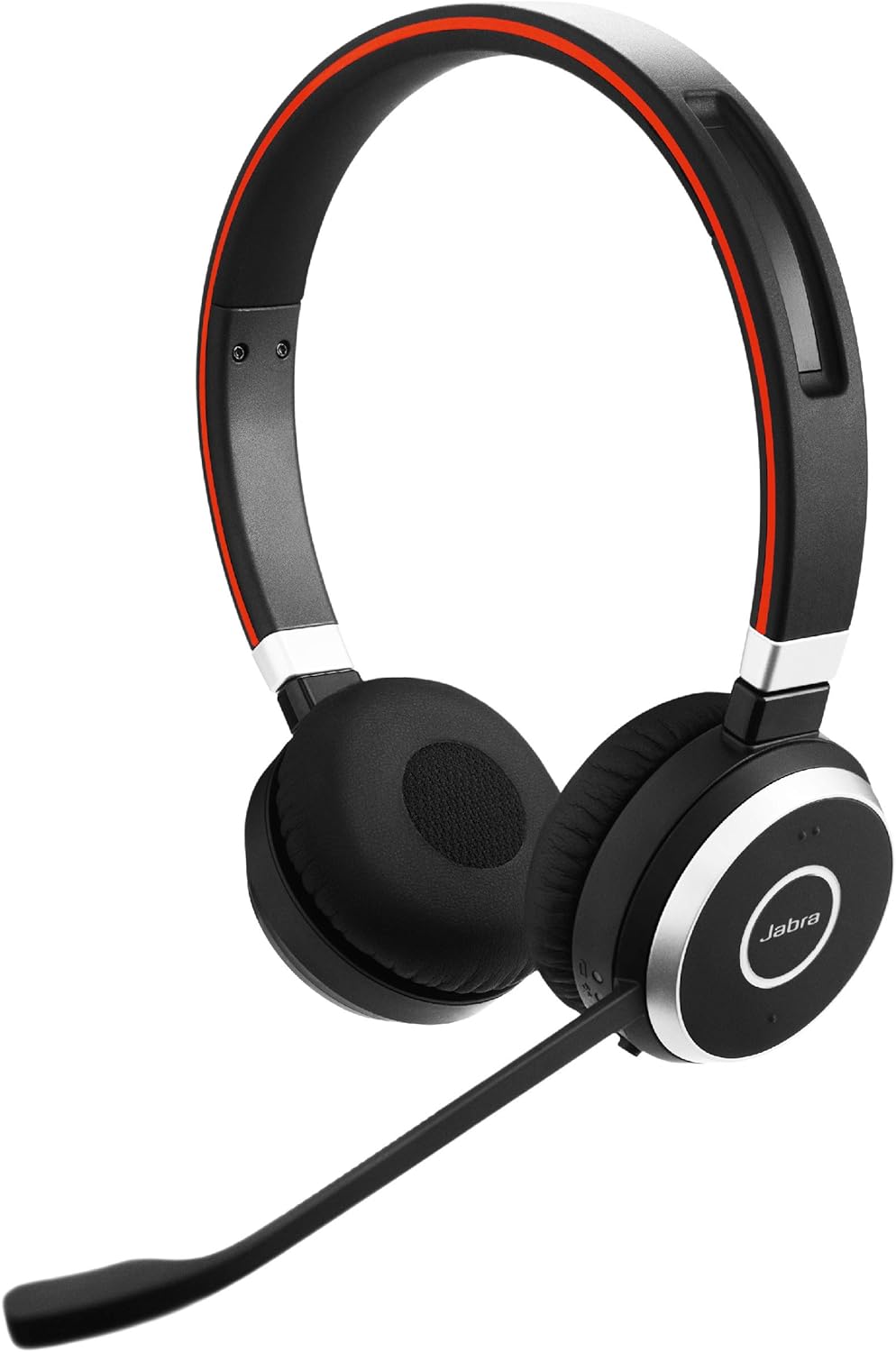
Background noise is the enemy of productivity. A noise-canceling headset is a non-negotiable for serious remote setups.
Check Price on AmazonHead-to-Head Feature Breakdown
1. User Interface & Ease of Use
Winner: Zoom.
Zoom’s interface is intuitive. Large buttons, clear settings, and a “Gallery View” that everyone loves. Teams feels like an enterprise dashboard, and while Meet is simple, hiding settings inside menus can be annoying during a live call.
2. Performance & Quality
Winner: Zoom.
Zoom prioritizes stream stability over resolution, meaning your call rarely drops even on weak Wi-Fi. Teams often struggles with syncing audio/video on slower connections. Meet depends heavily on your browser’s performance.
3. Collaboration Tools
Winner: Microsoft Teams.
If you need to co-author a document in real-time while chatting, Teams wins hands down. It is a digital office, whereas Zoom is just a meeting room. For effective collaboration, you also need good habits—learn about the habits of effective people to pair with these tools.
4. Security
Winner: Tie (Teams & Webex).
While Zoom has improved significantly with end-to-end encryption, Microsoft Teams benefits from Microsoft’s enterprise-grade security infrastructure. For personal security, remember to use a password manager—check our review of top password managers.
Final Verdict: Which One Should You Choose?
The “best” tool depends entirely on your specific workflow. Here is our recommendation:
- Choose Zoom if: You are a freelancer, a consultant, or host webinars with people outside your organization. It is the most reliable for external communications.
- Choose Microsoft Teams if: Your company already pays for Microsoft 365. It is the best hub for internal team management and project collaboration.
- Choose Google Meet if: You are a startup or small business using Google Workspace. It offers the least friction and easiest setup.
Ultimately, the software is only one part of the equation. To truly master remote work, you need the right environment. Don’t forget to optimize your physical space with the must-have gadgets for your home office.
Frequently Asked Questions
Which platform uses the least data?
Generally, Google Meet and Zoom are more efficient with data than Microsoft Teams. Zoom allows you to enable “HD” only when needed, which saves significant bandwidth.
Can I use Microsoft Teams without an Office 365 subscription?
Yes, there is a free version of Microsoft Teams available for personal use, but it lacks the advanced meeting recording and administrative features found in the paid business plans.
Is Zoom safe to use in 2025?
Yes. Since the “Zoombombing” issues of 2020, Zoom has implemented robust security features, including waiting rooms, passcodes by default, and end-to-end encryption for paid users.
Which is better for large webinars?
Zoom is widely considered the best for large webinars due to its specific “Zoom Webinar” add-on, which offers superior moderation controls and audience interaction features.
Upgrade Your Remote Setup
No matter which software you pick, bad lighting and poor audio will ruin the experience. Invest in the right gear to look and sound professional.
