
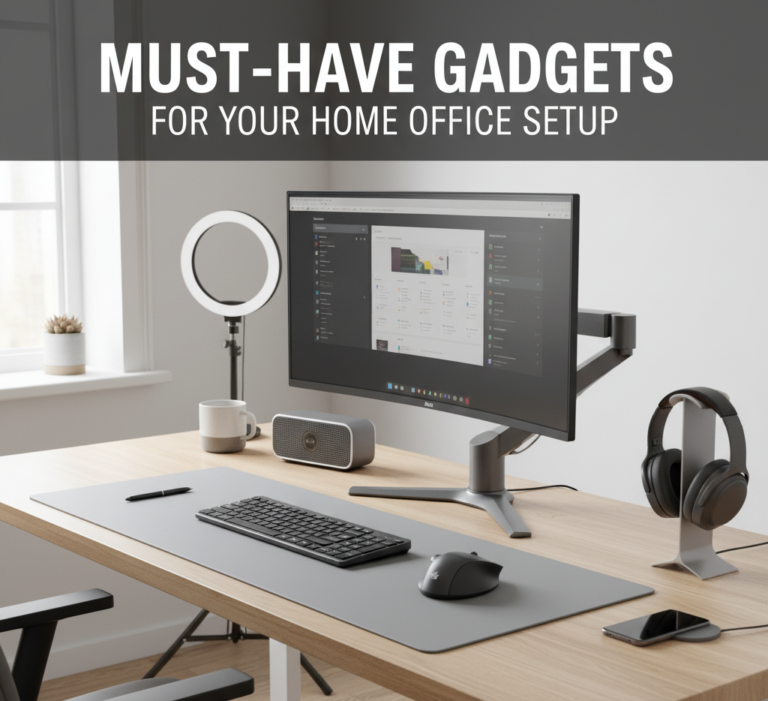
The 8 Must-Have Gadgets for Your Home Office Setup: ROI on Productivity and Health
The home office is the engine of your financial and professional life. Treating it with cheap, mismatched gear is akin to trying to cook a gourmet meal with broken kitchen gadgets. A high-performance workspace is not a luxury; it’s a necessary investment that offers measurable Return on Investment (ROI) in health, focus, and time.
The following 8 gadgets are non-negotiable for anyone serious about deep work, long-term health, and automating their success. These tools support the habits of highly effective people by removing friction and physical strain.
Why Your Home Office Setup Directly Impacts Your Income
The shift to remote and hybrid work has fundamentally changed the economics of the home office. What was once an occasional luxury has become a daily professional battleground where your environment determines your output. And yet, the average remote worker’s setup consists of a kitchen table, a laptop propped on books, and a pair of earbuds that cut out on every video call.
This is not a minor inconvenience. It is a daily tax on your productivity, your health, and ultimately your earnings. Research consistently demonstrates that the physical work environment is one of the most powerful and most overlooked levers of professional performance.
Think of your home office investment through a purely financial lens. If an ergonomic chair costs $900 and prevents one serious back injury that would cost $3,000 in treatment and 20 lost work days, the ROI is immediate and obvious. If noise-canceling headphones costing $300 recover 30 minutes of deep work daily, at an hourly rate of $50, that is $125 per week, or $6,500 per year in recovered productive capacity. The math is not subtle.
1. The Posture Anchor: Ergonomic Chair
(e.g., Herman Miller Aeron, Steelcase Leap)
Your chair is the single most important piece of equipment you own. You sit in it for 40+ hours a week. A poor chair guarantees back pain, which quickly derails your self-care checklist and focus.
Why It’s a Financial Investment
Spending $800–$1,500 on a chair seems expensive, but it’s an investment against future medical bills and lost productivity. People who are disciplined with the habits of people who are good with money prioritize quality over cheapness for high-contact items.
The Science of Ergonomic Seating
The spine has three natural curves: the cervical (neck), thoracic (upper back), and lumbar (lower back). When you sit without proper support, the lumbar curve flattens, transferring load to the intervertebral discs and the surrounding muscles. Over hours, this produces the familiar ache that remote workers describe as “just part of working from home.” It is not. It is a design failure of the workspace.
A proper ergonomic chair addresses all three spinal curves through adjustable lumbar support, a backrest that matches the spine’s natural shape, a seat pan depth that supports the entire thigh without pressing behind the knees, and armrests positioned to keep the shoulders relaxed and elbows at roughly 90 degrees. The adjustment range matters as much as the quality of the materials—a chair that cannot be correctly fitted to your body is an expensive mistake.
What to Look for in an Ergonomic Chair
- Adjustable lumbar support (height and depth)
- Seat height range that allows feet flat on floor
- Adjustable armrests (height, width, and pivot)
- Seat depth adjustment for thigh support
- Breathable mesh back to prevent heat buildup
- Recline tension control with locking positions
Budget Tiers
Entry ($200–$400): Secretlab Titan, HON Ignition 2.0 — meaningful improvement over standard office chairs with basic ergonomic adjustments.
Mid ($400–$800): Autonomous ErgoChair Pro, Branch Ergonomic Chair — full adjustability and quality materials without premium pricing.
Premium ($800–$1,500+): Herman Miller Aeron, Steelcase Leap — clinical-grade ergonomics, 12-year warranties, and materials that outlast multiple budget alternatives.
The 10-Year Ownership Calculation
A $1,200 Herman Miller Aeron, divided over a 10-year lifespan (the warranty period), costs $120 per year or $0.46 per working day. A $200 budget chair that develops discomfort within 18 months and requires replacement every 3 years costs $67 per year in chair cost alone—before accounting for the productivity lost to discomfort and the healthcare costs of back problems. Premium ergonomic chairs are rarely the expensive option when analyzed honestly over time.
2. The Wrist Whisperer: Ergonomic Mouse
(e.g., Logitech MX Vertical, MX Master 3S)
The traditional mouse forces your wrist into an unnatural “flat” position. Over years, this leads to strain and potential Carpal Tunnel Syndrome. A vertical or ergonomic mouse positions your hand in a neutral “handshake” posture.

This mouse is angled at 57 degrees, reducing wrist pressure by 10%. It’s perfect for long sessions of managing your investment accounts or coding. The customizable buttons and fluid cross-computer control make it an indispensable part of an optimized setup.
Check Price on AmazonThe Complete Peripheral Picture: Keyboard and Mouse Together
The mouse is only half of the upper-extremity ergonomic equation. The keyboard is the other. Most remote workers use the flat, straight keyboard that came with their computer—a design optimized for manufacturing cost rather than human anatomy. A split ergonomic keyboard (such as the Logitech Ergo K860 or the Microsoft Sculpt) allows the wrists to maintain a more natural angle, reducing the pronation that accumulates over thousands of keystrokes daily.
The gold standard peripheral pairing for repetitive strain prevention is a vertical mouse combined with a split ergonomic keyboard, positioned at a height where the elbows are at 90 degrees or slightly open (100–110 degrees). Adding a wrist rest—used only during pauses in typing, not actively while typing—completes the setup. This combination addresses the three most common upper-extremity problems among office workers: Carpal Tunnel Syndrome, ulnar deviation, and wrist extension strain.
3. The Focus Shield: Noise-Canceling Headphones
(e.g., Sony WH-1000XM6, Bose QC Ultra)
External noise fragments attention, spiking your stress hormone (cortisol). The solution is Active Noise Cancellation (ANC). These headphones create a silent bubble, allowing you to dedicate blocks of deep work using the time blocking method.
How Active Noise Cancellation Actually Works
Active Noise Cancellation is not simply “blocking out sound” the way foam earplugs do. ANC headphones use tiny microphones placed on the outside of the ear cup to continuously sample the ambient soundscape. An internal processor analyzes this incoming noise and generates an “anti-noise” signal—a sound wave that is the exact inverse (opposite polarity) of the environmental noise. When these two signals combine at your ear, they cancel each other out, producing a remarkable reduction in perceived ambient noise.
The technology is most effective at consistent low-frequency sounds: air conditioning, traffic, engine hum, office HVAC systems. It is less effective at sharp, unpredictable sounds like voices or sudden percussive noises. This is why the best ANC headphones combine electronic noise cancellation with passive isolation (the physical seal of the ear cups against the head) for comprehensive noise attenuation.
The Neuroscience of Noise and Cognitive Performance
Research published in the Journal of Applied Psychology found that even moderate ambient noise (55–65 dB—roughly a typical open office) significantly impairs performance on complex cognitive tasks. The brain does not simply “tune out” background noise; it actively processes it in parallel with the intended task, depleting the same cognitive resources needed for focus. Every unpredictable sound requires a micro-assessment: is this relevant? Is this a threat? This is unconscious and continuous, and it is cognitively expensive.
Choosing Between Over-Ear, On-Ear, and In-Ear ANC
| Type | ANC Quality | Comfort (Long Sessions) | Portability | Best For |
|---|---|---|---|---|
| Over-Ear | Excellent | Very good (ear fatigue at 4+ hrs) | Moderate | Deep work blocks, open offices, home studios |
| On-Ear | Good | Moderate (ear pressure builds) | Good | Commutes, occasional use |
| In-Ear (TWS) | Good–Very Good | Good (if fit is right) | Excellent | Calls, travel, hybrid workers |
4. The Vision Protector: Monitor Light Bar
(e.g., BenQ ScreenBar Pro, Quntis Light Bar)
A standard desk lamp creates glare and uneven lighting. A monitor light bar sits on top of your screen, illuminating your desk space without shining light into your monitor or your eyes. This drastically reduces digital eye strain.

This premium gadget features an auto-dimming ambient light sensor, adjusting brightness based on your room. It illuminates your workspace at the optimal 500 lux level. It’s an essential upgrade for anyone using a desktop or even just a docked budget laptop for late-night work sessions.
Check Price on AmazonDigital Eye Strain: The Invisible Productivity Drain
Computer Vision Syndrome (CVS), also called Digital Eye Strain, affects an estimated 50 to 90 percent of people who work at screens for more than two hours daily. Symptoms include dry, irritated eyes, blurred vision, headaches, and neck and shoulder pain. These are not minor inconveniences—they accumulate over a workday and significantly reduce output quality in the afternoon hours.
The cause is multifactorial: reduced blinking rate (from roughly 15 times per minute to as few as 5 when staring at a screen), inadequate ambient lighting that forces the eyes to work harder to perceive contrast, and glare from both the screen itself and reflective surfaces in the environment. A monitor light bar addresses several of these factors simultaneously by providing consistent, properly directed task lighting without introducing new glare sources.
The 20-20-20 Rule
Every 20 minutes, look at an object at least 20 feet away for at least 20 seconds. This exercise relaxes the ciliary muscle inside the eye that is chronically contracted during close-up screen work. Setting a timer within your time-blocking app to prompt this break costs nothing and prevents a meaningful portion of eye fatigue.
Optimal Monitor Setup for Eye Health
Position the monitor so the top of the screen is at or slightly below eye level. Distance should be 20–28 inches (arm’s length). Screen brightness should roughly match the brightness of the surrounding environment—not dramatically brighter or dimmer. The monitor light bar is essential for achieving this ambient match, particularly in rooms with variable natural light.
Lighting for Video Calls: The Professional Differentiator
There is a secondary benefit to good desk lighting that is rarely discussed: your appearance on video calls. Remote workers who appear well-lit, clear, and professional on screen convey competence before they have said a single word. The monitor light bar accomplishes this as a side effect—it provides even front-facing illumination that eliminates the harsh shadows and silhouetting that plague workers with windows behind them.
For professionals who spend significant time on client calls, investor meetings, or recorded presentations, an additional ring light or panel light positioned slightly off-center adds flattering fill lighting. This is the same principle used in broadcast television and video production: light the subject from the front and slightly above, with soft, diffused illumination that eliminates harsh shadows.
5. The Energy Booster: Standing Desk Converter
(e.g., FlexiSpot, Moft Sit/Stand Desk)
Sitting is the new smoking. The ability to switch postures every hour improves blood flow, increases energy, and reduces long-term musculoskeletal risk.
The Research on Prolonged Sitting and Metabolic Health
The phrase “sitting is the new smoking” originates from research by Dr. James Levine at the Mayo Clinic, who documented extensive metabolic and cardiovascular consequences of prolonged sedentary time. Studies have linked sitting for more than eight hours daily with a significantly elevated risk of type 2 diabetes, cardiovascular disease, deep vein thrombosis, and all-cause mortality—independent of exercise habits. Even people who exercise regularly cannot fully counteract the metabolic harm of sitting for extended continuous periods.
The mechanism is straightforward: when large muscle groups in the legs and core are inactive, the production of lipoprotein lipase—an enzyme that processes blood fats—drops dramatically. Blood sugar regulation is also impaired. Brief periods of standing or light movement every 30–60 minutes restore these processes. The goal is not standing all day (which creates its own fatigue and musculoskeletal problems) but regularly alternating between sitting and standing.
⚠️ The Anti-Fatigue Mat Is Not Optional
If you add a standing desk or converter, an anti-fatigue mat is a mandatory companion purchase. Standing on hard flooring for extended periods compresses the joints of the feet, ankles, knees, and hips, producing fatigue faster than sitting. An anti-fatigue mat’s slightly cushioned surface encourages subtle, continuous micro-movements in the leg muscles, maintaining blood flow and dramatically reducing lower-limb fatigue. Budget $40–$120 for a quality mat alongside any standing desk investment.
Sit-Stand Protocol: How Often Should You Switch?
The most current ergonomic guidance recommends a roughly 1:1 or 2:1 ratio of sitting to standing time, with transitions every 30–45 minutes. Standing for an entire workday is counterproductive—it produces lower back and leg fatigue that is as impairing as prolonged sitting. The benefit comes from the transition itself: the postural change activates different muscle groups, restores circulation, and provides a natural cognitive reset that often accompanies the physical movement.
A practical implementation: stand during phone calls (which removes the need for a keyboard and naturally frees your posture), stand for the first 30 minutes after lunch (when post-meal blood sugar dips can induce drowsiness), and alternate during focused work blocks. A simple timer or a smart desk with preset heights makes the habit frictionless.
6. The Efficiency Hub: GaN Charging Station
(e.g., UGREEN Nexode, Anker 747)
A messy desk is a messy mind. Instead of six different wall warts and a tangled power strip, consolidate your charging needs into one powerful Gallium Nitride (GaN) station.

This station delivers up to 500W of power across multiple USB-C and USB-A ports, efficiently replacing bulky power bricks. It’s essential for organizing the chaos behind your desk, allowing you to secure your financial apps and logins without distraction, an element of the password manager checklist.
Check Price on AmazonGaN Technology: Why It’s a Quantum Leap Over Traditional Chargers
Gallium Nitride (GaN) semiconductors represent a significant advancement over the silicon-based semiconductors used in traditional phone and laptop chargers. GaN can switch electrical current on and off at much higher frequencies than silicon, which means it converts AC power to DC more efficiently, generating less waste heat in the process. The practical result is chargers that are dramatically smaller and lighter than their silicon equivalents while delivering equal or greater wattage.
A traditional 65W laptop charger might be the size of a small paperback book. A GaN 65W charger is often smaller than a deck of cards. A GaN charging station delivering 200W+ across five or more ports occupies less space than the collection of individual bricks it replaces. For a desk where space and visual clarity are productivity variables, this miniaturization is a meaningful quality-of-life upgrade.
Cable Management: The Hidden Productivity Lever
Cognitive research on environmental psychology has documented that visual clutter—objects in the peripheral field of vision that the brain subconsciously categorizes and monitors—creates a low but continuous drain on attentional resources. A tangle of cables behind a monitor is precisely this kind of cognitive noise: not demanding enough to address, but present enough to register.
A structured cable management system, anchored by a GaN charging station as the central power hub, dramatically reduces this background cognitive load. The practical components: cable raceways or under-desk cable trays to route cables invisibly, velcro cable ties to bundle and organize visible cables, a cable box to conceal the charging station itself, and magnetic cable holders at the desk edge to keep frequently used cables accessible without creating clutter. This is a $30–$60 upgrade that delivers disproportionate environmental clarity.
7. The Neck Saver: Monitor Arm
(e.g., WALI, VIVO Gas Spring)
Your monitor needs to be adjustable—not just up and down, but forward and back. A monitor arm frees up desk space (crucial for small offices) and ensures the top third of your screen is at eye level, preventing the “tech neck” slump.
Tech Neck: The Modern Epidemic
“Tech neck” refers to the cervical spine stress caused by the forward-head posture that people adopt when looking at screens positioned too low—which describes the monitor setup of the majority of remote workers. For every inch the head moves forward from its neutral position above the shoulders, the effective load on the cervical spine roughly doubles. A head in neutral position places approximately 10–12 pounds of load on the neck. With the head tilted forward 60 degrees (a common angle when looking down at a laptop), the load increases to nearly 60 pounds—five times the baseline.
Over a workday of seven or eight hours, this accumulated load produces muscle fatigue, tightening, and eventually chronic pain. Many remote workers who report chronic headaches or “tension in the neck and shoulders” are experiencing the direct consequence of a monitor positioned 3–4 inches too low. A monitor arm is the most targeted corrective tool available—it repositions the screen at the correct height and distance with precision that is impossible to achieve with books, stands, or desk risers.
The Dual Monitor Advantage: When One Screen Isn’t Enough
Research by the University of Utah found that users with dual monitor setups completed tasks involving reference materials 33% faster than single-monitor users and reported less eye strain because they were not constantly switching between application windows on a single screen. For knowledge workers whose daily tasks involve comparing documents, referencing data while writing, coding with documentation open, or managing communications alongside a primary work application, dual monitors represent one of the highest-ROI workspace upgrades available.
A monitor arm that supports dual displays—either a dual arm or two individual arms—allows precise independent positioning of each screen, eliminating the height and angle mismatches that create strain when two monitors sit on their own stands at different heights. The optimal dual-monitor setup positions both screens at the same height, angled slightly inward in a gentle arc, with the primary screen directly ahead and the secondary screen to the non-dominant side.
8. The Focus Keeper: Smart Mug/Analog Tool
(e.g., Ember Smart Mug 2, Rocketbook)
The smallest gadgets can have the biggest impact on mood and routine. The Ember Mug keeps your coffee/tea at the perfect temperature from your morning routine until lunchtime. This prevents the distraction of reheating or making a new brew.

This mug keeps your drink at the precise temperature you select for up to 3 hours, or all day on the charging coaster. It eliminates the 15-minute distraction of reheating your drink, maintaining your focus during those deep work blocks. It’s a small luxury that pays large dividends in concentration.
Check Price on AmazonThe Case for Analog in a Digital Workspace
There is a compelling body of research suggesting that handwriting activates more areas of the brain—including those associated with language comprehension, memory, and idea generation—than typing. A Princeton and UCLA study found that students who took handwritten notes demonstrated significantly deeper conceptual understanding than those who typed, even though the typists captured more words. The relative slowness of handwriting forces a kind of processing that typing’s speed bypasses.
For the remote professional, an analog note-taking tool like a Rocketbook (a reusable notebook whose pages can be wiped clean and whose written content can be digitized via its app) offers the cognitive benefits of handwriting without the friction of maintaining physical notebooks. Strategic decisions, meeting notes, brainstormed frameworks, and to-do lists that are handwritten first are often better thought through than those typed directly into a digital tool.
Caffeine as a Cognitive Tool: Optimizing the Timing
Caffeine is the world’s most widely used psychoactive substance, and when used strategically, it is a genuinely effective cognitive performance enhancer. It works by blocking adenosine receptors in the brain—adenosine is the neurotransmitter that accumulates during waking hours and progressively creates the feeling of tiredness. By blocking these receptors, caffeine maintains alertness and improves reaction time, concentration, and mood.
However, timing and temperature both matter enormously. Consuming caffeine immediately upon waking—before cortisol has peaked—blunts caffeine’s effect and builds tolerance faster. Neuroscientist Andrew Huberman popularized the recommendation to delay the first coffee by 90–120 minutes after waking, allowing cortisol to perform its natural alerting function before caffeine amplifies it.
The Ember Mug addresses the temperature issue: most people find that coffee drops below their preferred drinking temperature within 15–20 minutes, leading to either rushed consumption (defeating the strategic timing) or a distraction-inducing reheat trip. A smart mug that maintains the ideal temperature for hours supports the intentional, timed caffeine protocol that optimizes focus across the workday.
How to Build Your Home Office in the Right Order
Not everyone can upgrade every element of their home office simultaneously—nor should they try. The following priority framework helps you sequence your investments for maximum impact per dollar, based on the relative contribution each upgrade makes to health and productivity outcomes.
Priority Tier 1: Foundation ($0–$500)
These are the non-negotiables that prevent injury and establish the basic conditions for focused work. Tackle these first regardless of budget.
- Monitor position: Use books or a box to raise your screen to eye level before spending a dollar.
- Ergonomic mouse: $60–$100 investment with immediate wrist health returns.
- Monitor light bar: $50–$100 and eliminates eye strain in day one.
- GaN charging station: $40–$80 for desk clarity and cable organization.
Priority Tier 2: Performance ($500–$2,000)
Once the foundation is in place, these upgrades compound the productivity and health gains significantly.
- Ergonomic chair: The highest-impact single upgrade. Do not compromise here.
- Noise-canceling headphones: The focus multiplier that unlocks deep work blocks.
- Monitor arm: Correct positioning after the screen height is improvised.
- Standing desk converter: Add movement without replacing your desk.
The Minimum Viable Home Office: Eight Essentials Under $500
For remote workers on a tight budget who need to maximize impact per dollar, this configuration addresses the most critical ergonomic and productivity variables without breaking the bank:
- Budget ergonomic chair with lumbar adjustment: $180–$280 (Branch, HON Ignition 2.0)
- Logitech MX Vertical or similar ergonomic mouse: $80–$100
- Monitor light bar (Quntis or BenQ entry model): $40–$70
- In-ear ANC earbuds (Sony WF-1000XM5 or Jabra Evolve2 Buds): $100–$180
- Single GaN charging station (Anker Nano or similar): $35–$50
- Adjustable laptop stand (raises laptop for eye-level positioning): $25–$40
- External keyboard (allows proper posture when using laptop stand): $30–$60
- Anti-fatigue mat (essential if using any standing solution): $35–$60
This configuration achieves correct monitor height, neutral wrist posture, reduced eye strain, acoustic isolation for focus, cable organization, and movement opportunity for approximately $400–$600 total—a fraction of the productivity and health ROI it generates.
The Financial Case: Home Office Equipment as a Deductible Investment
For self-employed individuals, freelancers, and many remote employees, home office equipment purchases may qualify as tax-deductible business expenses. In the United States, the IRS allows self-employed taxpayers to deduct equipment used exclusively and regularly for business under Section 179, which permits immediate expensing of qualified equipment purchases rather than multi-year depreciation.
The specific rules vary by employment status, country, and tax situation—consulting a qualified tax professional is essential before claiming deductions. However, for eligible remote workers, the after-tax cost of a $1,200 ergonomic chair in a 24% tax bracket is effectively $912. The after-tax cost of $300 noise-canceling headphones becomes $228. This tax efficiency further improves the already compelling ROI of quality home office investments.
Tracking Your Home Office Investment ROI
Create a simple tracking spreadsheet when you begin upgrading your setup. Record the date of each purchase, cost, and your subjective productivity and comfort ratings (on a scale of 1–10) before and 30 days after the upgrade. Over six months, this data will show you which investments produced the most meaningful changes in your work quality. The most common finding: the ergonomic chair produces the most dramatic well-being improvement, while noise-canceling headphones produce the most immediate productivity gain.
The Video Call Setup: The Missing Ninth Element
The eight gadgets listed are the foundation of a high-performance home office. But for professionals who spend significant time in video meetings—client presentations, team standups, investor pitches, or recorded content creation—a brief word on the video call setup is essential.
The built-in webcam and microphone on most laptops produce mediocre quality that communicates a lack of investment in your professional setup. An external USB webcam (such as the Logitech C920 or Logitech Brio 4K) and a USB condenser microphone or a broadcast-quality dynamic microphone (such as the Rode NT-USB Mini or the Blue Yeti Nano) transform video call quality dramatically. Combined with the monitor light bar’s natural front-facing illumination, these two additions—available for $100–$200 combined for entry-level options—create a setup indistinguishable from a professional broadcast studio.
In environments where video calls are client-facing or where professional credibility is a factor in business outcomes, the ROI on these additions may be the highest of any investment in this entire guide.
Frequently Asked Questions: Home Office Gadgets
An ergonomic mouse and a monitor light bar, as a pair, offer the highest combined impact under $150. The mouse addresses the most common repetitive strain issue, and the light bar eliminates digital eye strain that degrades afternoon productivity. If forced to choose one, the ergonomic mouse wins by a narrow margin for most users who are not currently experiencing eye fatigue.
For most home office users, a quality sit-stand converter is sufficient and represents better value. Full standing desks offer smoother height transitions and better stability, but at $400–$1,200 compared to $100–$300 for a good converter, the incremental benefit rarely justifies the incremental cost unless you are moving your setup multiple times daily or require a very large work surface. The anti-fatigue mat is essential with either option.
ANC is most effective against consistent, low-frequency sounds: HVAC systems, road traffic, aircraft engines. It is less effective against human voices, especially higher-pitched ones, and against sudden or irregular sounds. For environments dominated by conversational noise (a household with children, a coffee shop), ANC reduces but does not eliminate the distraction. In these cases, pairing ANC headphones with focus music or white noise at moderate volume is the most effective strategy.
For most knowledge work, a 27-inch 1440p monitor represents the optimal sweet spot: large enough to comfortably display multiple windows side by side, at a pixel density high enough that text renders crisply without requiring scaling. Beyond 32 inches, benefits diminish unless the work involves visual design or video editing. Color accuracy matters more than size for designers; response time matters more for those who also game.
Yes—significantly. One of the most insidious aspects of remote work is the blurring of work and home environments. Physical rituals that signal transitions matter: a dedicated workspace that is visually distinct from living areas, a specific set of tools (headphones on = work mode), and an end-of-day shutdown routine that may involve putting equipment away or covering the desk. The gadgets themselves become physical anchors for mental states when used consistently.
Research is increasingly clear that indoor air quality has measurable effects on cognitive performance. Elevated CO₂ levels—common in small, poorly ventilated home offices—impair decision-making and concentration. A modest air purifier with a HEPA filter reduces particulates and allergens; opening a window periodically and ensuring regular ventilation addresses CO₂ buildup. While not a gadget in the traditional sense, an air quality monitor ($50–$100) that alerts you when CO₂ levels rise is a worthwhile addition for professionals in small rooms with limited ventilation.
Final Verdict: Invest in Yourself
Your home office is where you generate your income and build your future. Every gadget listed here is not an expense; it is a calculated ROI designed to improve your focus, extend your health, and maximize the utility of your time.
The aggregate effect of a properly optimized home office is not additive—it is multiplicative. An ergonomic chair eliminates pain that would otherwise erode afternoon focus. Noise-canceling headphones unlock deep work blocks that would otherwise fragment into shallow multitasking. Proper lighting eliminates the eye fatigue that would otherwise cut the productive day short by an hour. A standing converter restores afternoon energy that would otherwise be lost to the metabolic effects of prolonged sitting. Together, these eight upgrades represent a transformation of the daily work experience from a grinding, physical battle to a smooth, high-output professional environment.
Start your upgrade plan today. Just as you plan your travel packing list or manage your credit score, prioritize these purchases. Your body and your bank account will thank you.
Your First Step Today
Conduct a five-minute ergonomic audit of your current setup right now. Check: Is your monitor top at eye level? Are your wrists neutral while using your mouse? Is your lower back supported? Is ambient noise fragmenting your focus? Identify the single most urgent problem and address it first. One targeted upgrade made immediately delivers more value than a comprehensive plan made indefinitely.