
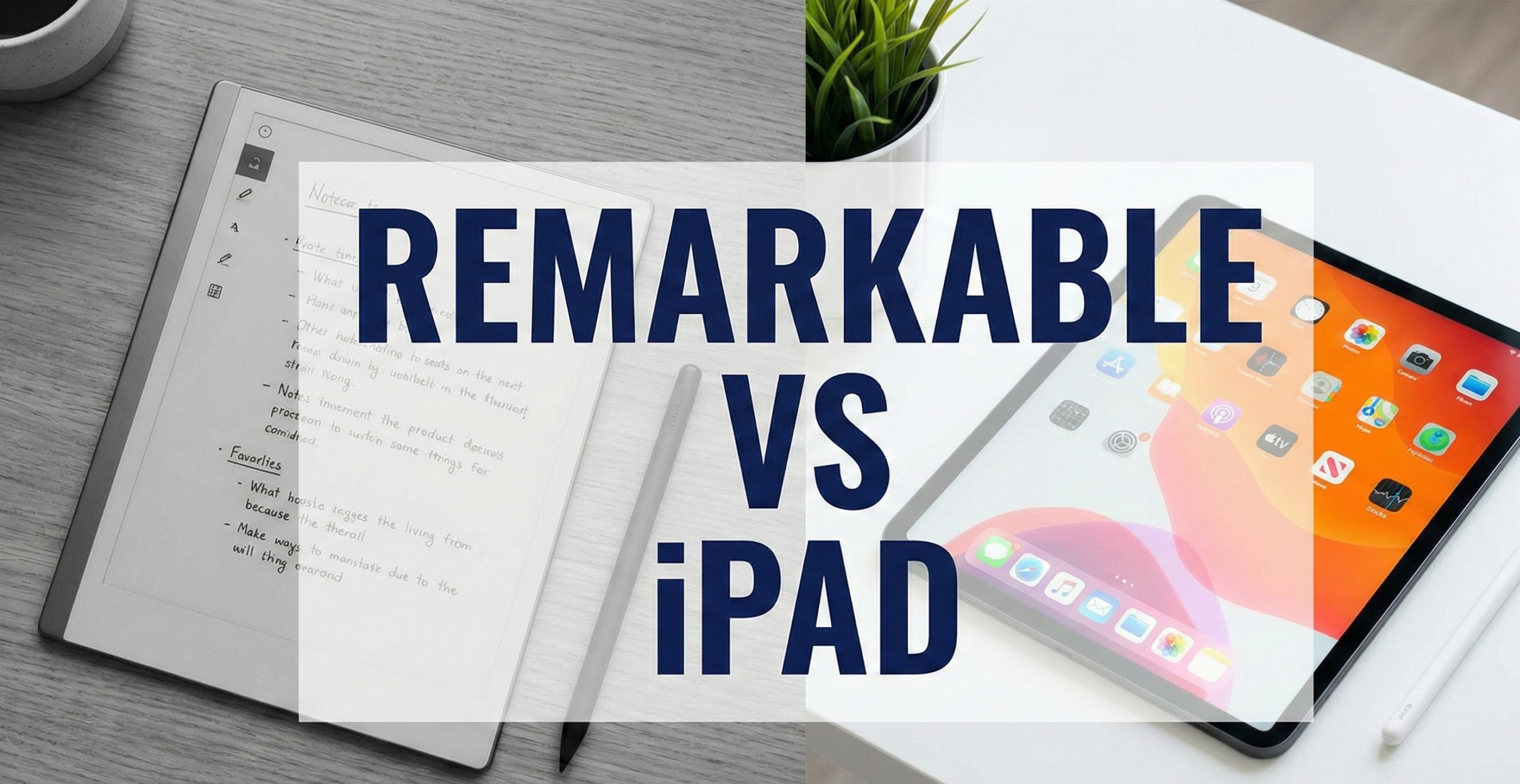
reMarkable vs. iPad: Which Digital Notebook Should You Buy?
Choosing between a reMarkable and an iPad isn’t just about comparing specs — it’s about choosing a philosophy of work. The iPad is a marvel of modern engineering, a “do everything” machine that puts the world’s knowledge, entertainment, and distractions at your fingertips. The reMarkable is a deliberate rebellion against that. It is a “do one thing exceptionally” machine designed to help you think, write, and read without the gravitational pull of notifications, apps, and infinite scroll.
With the release of the reMarkable Paper Pro introducing color E-Ink and a built-in backlight, the gap between the two devices has narrowed meaningfully. Meanwhile, Apple’s iPad lineup has continued to push thinness, processing power, and Apple Pencil precision to levels that rival professional laptops. This guide breaks down exactly which device belongs in your bag, on your desk, or in your briefcase — based on your specific workflow, habits, and priorities.
Who Is Each Device Actually Built For?
Before diving into specifications, the most useful frame for this comparison is understanding the design intent behind each product. These two devices are not competing to be the same thing — they are competing for space in your bag while serving fundamentally different functions.
reMarkable was built for one type of person
The reMarkable was designed for knowledge workers, academics, writers, lawyers, architects, and anyone whose primary cognitive tool is a stylus on paper. Its entire design brief can be summarized as: “make a digital device that feels indistinguishable from paper and removes every possible distraction.” The company’s original investors were largely recruited from the academic and publishing worlds, and that DNA shows in the product — every decision trades versatility for depth of writing experience.
If you currently carry a notebook, annotate printed PDFs, or buy a new Moleskine every few months, the reMarkable is quite literally trying to replace that stack of paper. It is not trying to replace your phone, your laptop, or your TV. This narrowness of purpose is not a limitation — it is the entire product strategy.
iPad was built for everyone
The iPad was designed to be the best version of a computing device for any task that doesn’t require a full-size keyboard — though Apple Pencil support, the Magic Keyboard, and M-series chips have increasingly eroded even that boundary. It is used as a professional illustration canvas (Procreate), a video editing suite (LumaFusion), a sheet music display for concert musicians, a point-of-sale terminal, a student notebook, a portable movie theater, and a medical imaging device. Its design brief is essentially: “do everything, beautifully.”
The iPad’s limitlessness is both its greatest strength and, for certain users, its greatest weakness. When a device can do anything, it requires willpower to use it for only one thing. For people with demanding cognitive work that requires sustained focus, an everything-device creates constant temptation that a paper substitute simply doesn’t.
The “Second Device” Question
One key question to ask yourself before purchasing either device: do you already have a laptop? If yes, you probably don’t need an iPad for productivity — your laptop already handles every task an iPad can. The reMarkable, by contrast, is genuinely complementary to a laptop rather than redundant with it, filling the specific niche of physical writing and document annotation that a laptop handles poorly.
Full Specs Comparison
| Feature | reMarkable Paper Pro | iPad Air (M2) |
|---|---|---|
| Display Type | Canvas Color E-Ink | Liquid Retina IPS LCD |
| Display Size | 11.8 inches | 11 inches (also 13-inch) |
| Resolution | 2160 × 1620 (229 ppi) | 2360 × 1640 (264 ppi) |
| Refresh Rate | Low / Asynchronous (paper-like) | 60Hz (120Hz on iPad Pro) |
| Color Support | Yes (Canvas Color, limited palette) | Full color, P3 wide color gamut |
| Backlight | Yes (warm + cool, adjustable) | Yes (True Tone) |
| Battery Life | ~2 weeks typical use | ~10 hours active use |
| Weight | 525g (18.5 oz) | 462g (16.3 oz) |
| Stylus Feel | Textured / High Friction (paper-like) | Slippery glass (matte protector helps) |
| Stylus Included | No (Marker sold separately) | No (Apple Pencil sold separately) |
| App Ecosystem | None — proprietary OS only | App Store (2M+ apps) |
| Internet Browser | No | Safari + all browsers |
| Cloud Sync | Yes (Connect subscription required) | Yes (iCloud, free tier included) |
| Handwriting-to-Text | Yes (Wi-Fi required for processing) | Yes (Scribble, on-device) |
| Storage | 64GB internal (no expansion) | 128GB–1TB (no expansion) |
| Connectivity | Wi-Fi only | Wi-Fi or Wi-Fi + Cellular |
| Processor | Proprietary ARM | Apple M2 chip |
| Starting Price | ~$579 (device only) | ~$599 (device only) |
The Distraction Factor: Notifications vs. Digital Zen
The iPad is an engagement machine. It was designed by one of the world’s most sophisticated user-retention engineering teams to be compelling, responsive, and deeply integrated with the notification ecosystem of modern digital life. While you are trying to write an essay, sketch a wireframe, or work through a research problem, you are one tap away from email, messaging apps, social media, streaming video, and the entire internet. Apple has introduced Focus Modes, Screen Time, and various attention management tools — but the underlying architecture of the device is built to reward tapping and engagement, not sustained singular focus.
This is not a criticism of Apple’s design — it is the correct product design for a general-purpose computing device. But it creates a real problem for users who need to do cognitively demanding work that requires sustained, uninterrupted concentration for 30, 60, or 90-minute sessions. Every notification badge, every app icon suggesting “just one quick check,” every incoming message creates what researchers call an “attention residue” — even if you don’t act on the notification, your brain partially switches context and takes minutes to return to full depth of focus.
The reMarkable is a digital monastery. It has no web browser, no email client, no social media, no video streaming, no games. You cannot install apps. When you turn it on, the only things you can do are write in a notebook, annotate a PDF, or read an EPUB or PDF document. That is the complete list of capabilities. For users with ADHD, for writers who struggle with the internet’s pull, for academics who need to read deeply without constant distraction, this “feature by omission” is not a compromise — it is the entire value proposition.
The Attention Residue Research
Organizational psychologist Sophie Leroy’s research on “attention residue” demonstrates that switching attention between tasks — even briefly checking a notification — leaves a portion of your cognitive resources still processing the previous task, degrading performance on the new one. The effect is cumulative: multiple notification checks per hour create a sustained partial attention state that measurably reduces the quality of complex cognitive output. A device that cannot generate notifications eliminates this problem at the hardware level.
Writing Feel: Glass vs. Textured Paper
The iPad Writing Experience
Writing on an iPad with an Apple Pencil — even the latest Apple Pencil Pro — feels fundamentally like writing on a window with a piece of plastic. The glass surface has almost no friction. Your stylus tip glides across it with minimal resistance, and for most people, this results in handwriting that is demonstrably messier and less controlled than their handwriting on physical paper. The hand-eye coordination required to write well on glass is slightly different from paper, and it takes weeks to adjust.
Apple has tried to address this through software (adjustable stroke sensitivity, various brush textures in GoodNotes and Notability) and hardware (the flat matte edge on newer iPad models provides slightly more stability). The Apple Pencil Pro adds haptic feedback and barrel roll detection that improves the drawing experience for artists. But none of these solutions change the fundamental physics of a smooth, hard surface with a plastic tip — the friction is simply not there.
The practical workaround that most serious iPad note-takers use is a matte screen protector — the most popular being the Paperlike. This adds a paper-texture coating to the glass that increases friction significantly, meaningfully improving writing feel. The trade-off is a slight reduction in screen sharpness and color vibrancy — which matters for artists and video consumers but is generally acceptable for note-takers.

Paperlike Screen Protector
If you choose the iPad but crave paper-like friction, this is an essential accessory. It transforms the slippery glass surface into a textured canvas — a genuine improvement for handwriting and sketching that the majority of iPad note-takers consider mandatory.
Check Price on AmazonThe reMarkable Writing Experience
The reMarkable screen is physically textured at the manufacturing level. The Marker tip drags across it with genuine friction — it makes an audible scratching sound that is remarkably (pun noted) similar to a pencil on paper. This friction gives you precise control over stroke weight and direction, producing handwriting and sketches that more closely resemble what you’d create on physical paper than any other digital device currently available.
The reMarkable also manages stylus tip consumption as a feature rather than a bug: the tips are designed to gradually wear down with use (just as a pencil gets shorter), creating a progressively softer stroke. Replacement tips are inexpensive and the company sells them openly. For many users, this wear characteristic actually improves the writing feel over time as tips develop a slight rounded profile.
One nuance worth acknowledging: the writing experience on the reMarkable Paper Pro (with its Color Canvas display) differs slightly from the original reMarkable 2. The Paper Pro’s surface has marginally less friction than the reMarkable 2 to accommodate the different display technology. Both feel substantially more paper-like than any iPad with or without a screen protector, but purists may notice the difference between the two reMarkable models.
The Verdict on Writing Feel
reMarkable wins this category decisively and without meaningful contest. For handwriting, annotation, and sketching quality, no digital device currently replicates paper feel as closely as the reMarkable. If pure writing experience is your primary criterion, the choice is clear.
Screen Technology Deep Dive: E-Ink vs. LCD/OLED
How E-Ink Actually Works
E-Ink (Electronic Ink) displays use microcapsules filled with black and white (and now colored) particles suspended in a clear fluid. An electric charge causes the particles to migrate toward the surface of the screen, creating the appearance of text and imagery. Crucially, the display only consumes power when it changes — once an image is set, it holds indefinitely with zero power draw. This is why the reMarkable’s standby battery life is measured in weeks rather than hours.
E-Ink is a reflective display technology — it bounces ambient light back to your eyes rather than generating its own light. This is why reading on a reMarkable in bright sunlight is easy (it gets effectively more readable as ambient light increases), while reading on an iPad in direct sunlight requires maximum brightness and creates glare. It is also why E-Ink is significantly gentler on eyes than backlit displays for extended reading sessions.
The Eye Strain Reality
The iPad’s display — whether LCD or OLED — emits blue-rich light directly at your retinas. Over 8-10 hour sessions, this contributes to digital eye strain, a condition the American Optometric Association characterizes as including dry eyes, blurred vision, headaches, and neck/shoulder pain. True Tone technology (which adjusts color temperature to ambient lighting) and Night Shift (which warms display color in the evening) help, but they don’t eliminate the fundamental issue of a high-intensity light source inches from your eyes for extended periods.
The reMarkable’s reflective display is clinically comparable to reading a printed book in terms of eye strain. There is no measurable difference in eye fatigue between reading a physical paperback and reading on an E-Ink device for equivalent durations. This makes the reMarkable the dramatically superior choice for anyone who reads for extended periods — academics processing research papers, lawyers reviewing contracts, students working through textbooks, or book readers who prefer not to use a dedicated e-reader.
Color: A Meaningful New Variable
The reMarkable Paper Pro’s color E-Ink (Canvas Color display) is a genuine innovation that changes the competitive calculus compared to previous monochrome reMarkable models. Color annotations on PDFs are now possible — a meaningful improvement for professionals who use color coding in their note systems, for architects and designers who annotate color drawings, and for students who use color to organize information.
The color quality is, however, substantially different from an iPad’s display. E-Ink color is muted and pastel-like rather than vibrant — colors appear washed out compared to LCD or OLED alternatives. The technology has inherent limitations in color gamut and saturation that physics currently constrains. This is entirely acceptable for note annotation and document reading, but means the reMarkable Paper Pro is not a replacement for color-critical work like photo editing, video production, or illustration that requires accurate color representation.
Refresh Rate and Responsiveness
The iPad’s display refreshes at 60Hz (standard models) or 120Hz (Pro models with ProMotion) — meaning the screen redraws 60-120 times per second. Scrolling is silky smooth, video playback is fluid, and stylus input appears essentially instantaneous. The reMarkable’s E-Ink display refreshes much more slowly and shows a brief flash when large areas of content change. For writing, this flash is minimal and unobtrusive. For scrolling through a long document, it creates a notable “ghosting” effect as particles reset. This is not a bug — it is a fundamental characteristic of E-Ink physics — but it does mean the reMarkable experience feels sluggish compared to an iPad for any task involving rapid navigation or dynamic content.
Software & Apps: Closed Garden vs. Infinite Toolkit
iPad: The World’s Best App Platform
The iPad runs iPadOS, which gives you access to the App Store’s full catalog. For note-taking and writing specifically, the options are extraordinary. GoodNotes 6 offers AI-powered handwriting recognition, audio recording synced to notes, and rich organizational tools. Notability provides similar capabilities with an interface many users prefer. Concepts is a vector-based infinite canvas for designers and architects. Procreate is the industry standard for digital illustration. Notion, Obsidian, and Craft provide linked-note and knowledge management systems that transform handwritten and typed notes into a connected knowledge base.
Beyond note-taking apps specifically, the iPad’s strength is in combination use: split-screening a research paper PDF alongside a GoodNotes notebook, watching a tutorial video while writing in one half of the screen, or cross-referencing multiple sources simultaneously. For students and researchers, this multi-window capability creates workflows that are genuinely more efficient than a physical paper notebook could support.
reMarkable: Intentional Constraint
The reMarkable software is intentionally, philosophically limited. You have folders, notebooks, and documents. You can import PDFs and EPUBs, annotate them with the Marker, and export annotated versions. You can convert handwriting to text (requiring Wi-Fi for cloud processing). The reMarkable Connect subscription adds unlimited cloud storage, desktop and mobile sync apps, and integration with Google Drive, Dropbox, and Microsoft OneDrive.
There is no global search across notebooks (a significant limitation for heavy users with large note archives). There is no tagging system — organization is purely hierarchical folder-based. Template options are available for lined paper, dotted grids, music staff, and various planning layouts, but these are static backgrounds rather than dynamic forms. The software receives periodic updates from reMarkable, but the company’s product philosophy explicitly resists adding features that would increase complexity or introduce distraction pathways.
For some users, this constraint is clarifying. When your device can only do one thing, you stop deliberating about how to use it and simply use it. The cognitive overhead of managing a complex digital note system evaporates — your reMarkable works exactly like a paper notebook, just with the added benefits of infinite pages and digital backup.
Handwriting Recognition Quality
Both devices offer handwriting-to-text conversion, but with meaningfully different implementations. The iPad’s Scribble feature (built into iPadOS) converts handwriting to text on-device in real time, without requiring internet connectivity. It works across virtually any text field in any app — you can scribble in a search bar, a messaging app, or a web form and have it converted instantly. The accuracy for English text is excellent; accuracy for other languages varies by language.
The reMarkable’s handwriting conversion sends your notes to its cloud servers for processing, then returns the text to your device. This requires Wi-Fi and introduces a slight delay, but the accuracy is comparable to iPad’s Scribble for block handwriting styles. The output can be exported as a text file or emailed directly. The reMarkable does not support real-time conversion while writing — it is a batch process applied to completed pages.
Battery Life: The Biggest Practical Difference
Battery life is the single most lopsided category in this comparison, and it matters far more in daily practice than most spec comparisons suggest.
- iPad Air (M2): Apple rates 10 hours of active use. In practice, heavy note-taking with backlight at medium brightness yields approximately 7-9 hours. Daily charging is essentially mandatory for any meaningful use.
- reMarkable Paper Pro: reMarkable rates approximately 2 weeks of typical use (defined as roughly an hour of writing per day). In practice, active writers using it several hours daily can expect 5-8 days per charge. Light users who primarily read documents can realistically get 2-3 weeks. The device enters an ultra-low-power sleep mode between uses that consumes almost no battery.
The practical implication of this gap is more significant than the numbers suggest. An iPad is a device you need to charge every night — it joins your phone, laptop, wireless headphones, and other devices in the nightly charging ritual. If you forget to charge it, you have a dead device in the morning. A reMarkable is a device you charge maybe once a week or less — more analogous to a book than to a battery-dependent device. You can go on a 4-day work trip and leave the charger at home. It simply doesn’t create the mental overhead of battery management.

reMarkable Paper Pro
The most advanced digital paper tablet available. Color E-Ink display, built-in reading light, and weeks of battery life. A genuine alternative to carrying physical notebooks and printed PDFs.
Check PricePDF & Document Annotation: A Critical Use Case
For many professionals and academics, the primary use case for a digital writing tablet isn’t creating new content — it’s annotating existing documents. Research papers, contracts, architectural drawings, financial reports, lecture slides, and books all arrive as PDFs, and the ability to mark them up intelligently and efficiently is the core workflow benefit of both devices.
reMarkable for PDF Annotation
PDF annotation is arguably the use case the reMarkable was most specifically designed for. The device renders PDFs at full resolution, allows freehand annotation with the Marker, supports highlighting (in multiple colors on the Paper Pro), adding text labels, and erasing. The annotated PDF can be exported with annotations embedded for sharing with colleagues or archiving. The E-Ink display means you can read and annotate a 200-page research report with the same eye comfort as reading a physical printout — without ever touching a printer.
The workflow for heavy PDF annotators who previously printed and marked up physical copies is genuinely transformed by the reMarkable: import the paper wirelessly (via the desktop app, Dropbox integration, or email), read and annotate at your own pace, and share the annotated version electronically. The environmental and cost savings of eliminating paper printing are a genuine secondary benefit for organizations that annotate documents at scale.
iPad for PDF Annotation
The iPad’s PDF annotation capability through apps like GoodNotes, Notability, or Apple’s own Files app is functionally comparable to the reMarkable — you can highlight, draw, type annotations, and export annotated versions. The advantages of the iPad for this workflow are the larger app ecosystem (some organizations use specific PDF management tools that only exist on iPadOS), the ability to switch between the PDF and other resources in split view, and vibrant color rendering for color-coded PDFs and diagrams.
The disadvantages for extended annotation sessions are the eye strain of a backlit display over hours of reading, and the writing feel on glass if annotations require precise handwriting. For short annotation sessions (under 2 hours), the iPad is entirely competitive. For 4-6 hour deep-reading annotation sessions — the kind academics, lawyers, and researchers regularly perform — the reMarkable’s eye comfort advantage becomes decisive.
The Science of Handwriting: Why It Matters Which Device You Choose
The choice between handwriting and typing — and between analog-feel handwriting and glass-surface handwriting — has meaningful cognitive implications that are directly relevant to this comparison.
Handwriting and Memory Encoding
Research by Pam Mueller and Daniel Oppenheimer (published in Psychological Science) demonstrated that students who took lecture notes by hand retained and understood material significantly better than students who typed notes, even when the typists recorded more total words. The proposed mechanism is that handwriting’s slower pace forces note-takers to process and paraphrase information in real time — a form of active elaboration that strengthens memory encoding. Typing often becomes transcription rather than processing.
This research has been broadly replicated and has entered mainstream educational theory. Its implication for the reMarkable vs. iPad comparison is that for learning contexts — students, researchers reading primary literature, professionals attending trainings — handwriting on the reMarkable may produce genuinely better knowledge retention than typing notes on an iPad, even if the iPad’s typed notes are more searchable and better organized.
The “Flow State” Connection
Psychologist Mihaly Csikszentmihalyi’s flow state research identifies several conditions that enable deep focus: clear goals, immediate feedback, appropriate challenge level, and removal of distracting interruptions. The reMarkable’s constrained environment — doing only one thing, with the tactile feedback of pen on paper, without notifications — more closely approximates flow conditions than a general-purpose device. For writers and thinkers who struggle to enter or maintain flow states on devices connected to the internet, the reMarkable’s environmental design is not a gimmick. It is applied cognitive science.
The Kinaesthetic Learning Dimension
For kinaesthetic learners — those who process information more effectively through physical action — the tactile distinction between reMarkable and iPad is not trivial. The friction of the reMarkable’s textured surface, the weight and balance of the Marker, the audible scratching of stylus on screen — these physical cues engage motor memory in ways that smooth glass and silent plastic do not. Many reMarkable users report that the device “feels like thinking” in a way that typing or writing on glass does not, and this phenomenological difference likely has real cognitive processing implications beyond mere preference.
Detailed Use Case Breakdown
The right device depends entirely on your specific workflow. Here is a comprehensive breakdown of how each device performs for specific user types.
University Student
iPadSplit-screen lectures + notes, access to academic databases, student discounts on apps. iPad 10th Gen is the budget-conscious choice. Only choose reMarkable if you primarily annotate PDFs and find laptops distracting.
Writer / Author
reMarkableNothing beats the reMarkable for distraction-free long-form writing sessions. The absence of the internet is a feature. Drafting on paper, then transcribing or exporting to text is a workflow many professional writers prefer.
Lawyer / Legal Professional
reMarkableContract annotation, case note-taking, reading briefs for 6-hour sessions. The reMarkable’s eye comfort for extended document reading and precise annotation capability make it ideal for legal workflows.
Architect / Designer
iPadProcreate for concept illustration, full-color rendering previews, reference photos. The iPad Pro with Apple Pencil Pro is genuinely a professional design tool. reMarkable’s limited color isn’t sufficient for design-critical work.
Researcher / Academic
reMarkableAnnotating papers for 8+ hours daily requires E-Ink for eye comfort. PDF annotation with handwritten notes, no distraction during deep reading. Zotero and reference managers still need a laptop — reMarkable supplements rather than replaces.
Executive / Manager
EitherMeeting notes and agenda annotation suit both devices. iPad wins if you need to present from the device or access business apps. reMarkable wins if meetings involve deep reading and you prefer the prestige of analog-feel writing.
Digital Artist / Illustrator
iPadNo contest — iPad Pro with Procreate is the industry standard for professional digital illustration. The reMarkable’s limited color gamut and drawing toolset are not designed for illustration workflows.
ADHD / Focus Challenges
reMarkableThe reMarkable’s inability to run distracting apps is a clinical benefit for people who struggle with impulse control around digital devices. Many ADHD users report it as transformative for sustained focused work sessions.
Heavy Reader (Non-Fiction / Technical)
reMarkableIf you read PDFs or EPUBs for 3+ hours daily, E-Ink eye comfort is decisive. The reMarkable Paper Pro also supports EPUB natively, making it a capable reading device for DRM-free books alongside document annotation.
Accessories & Hidden Costs: The True Price of Each Device
The advertised device price is rarely the complete cost of ownership for either product. Here is a realistic accounting of what you’ll likely spend to use each device effectively.
reMarkable Total Cost of Ownership
- reMarkable Paper Pro (device): ~$579
- Marker Plus stylus (recommended): ~$99 (standard Marker is ~$79; Marker Plus has built-in eraser)
- Folio case (protection): ~$89–$119 (reMarkable’s official folios; third-party options start ~$25)
- Connect subscription (cloud sync): ~$3/month or ~$30/year (optional but recommended)
- Replacement marker tips (box of 10): ~$15 (every 2-3 months for heavy users)
- Realistic total, year one: ~$800–$900
iPad Total Cost of Ownership
- iPad Air M2 (device): ~$599
- Apple Pencil Pro: ~$129 (required for serious note-taking; earlier Apple Pencil 2 is ~$89)
- Paperlike screen protector (highly recommended): ~$40
- Magic Keyboard or Folio cover: ~$50–$300 depending on model
- GoodNotes or Notability app: ~$10–$30/year (subscription models)
- iCloud storage upgrade (beyond 5GB free): ~$12–$36/year
- Realistic total, year one: ~$900–$1,100 with keyboard; ~$800 without
The Hidden Subscription Comparison
The reMarkable Connect subscription ($3/month) is optional but meaningfully limits the device without it — you lose cloud backup, mobile sync, and desktop app access. The iPad’s equivalent cloud costs (iCloud + app subscriptions) are also ongoing. Over 3 years, both devices accumulate similar subscription overhead of $100–$150. Factor this into price comparisons that only cite hardware cost.
Alternatives Worth Considering
Neither the reMarkable nor the iPad is the only option in its respective category. Here are the most relevant alternatives that deserve consideration before committing to either.
If You’re Considering reMarkable, Also Look At:
- Onyx Boox Note Air 3 C (~$500): Android-based E-Ink tablet with color display, app support (including Kindle, Notion, and more), handwriting recognition, and a more open platform than reMarkable. Better versatility than reMarkable; slightly inferior writing feel. Good choice if you want the E-Ink display with some app access.
- Supernote A5 X2 (~$500): A reMarkable competitor with passionate niche following, emphasizing even more precise stylus feel and a customizable software layer. Its “ceramic nib” tip system offers a slightly different texture profile than reMarkable. Strong PDF annotation tool.
- Kobo Elipsa 2E (~$400): An E-Ink device with stylus support primarily designed for reading with annotation capability. Better for readers who occasionally annotate than for writers or meeting note-takers. Integrates with the Kobo bookstore ecosystem including library borrowing (OverDrive).
If You’re Considering iPad, Also Look At:
- iPad (10th generation, ~$349): The entry-level iPad supports Apple Pencil 1st gen (via USB-C adapter) and all major note-taking apps. For students on strict budgets who primarily need a note-taking device, this remains an excellent entry point.
- iPad mini (7th gen, ~$499): For users who prioritize portability above all else, the iPad mini’s pocketable form factor (195g vs. iPad Air’s 462g) and Apple Pencil Pro support make it a compelling portable note-taking device.
- Samsung Galaxy Tab S10+ (~$700): For Android users or those in the Samsung ecosystem, the Galaxy Tab S10 with S Pen offers a comparable experience to iPad with GoodNotes. Samsung Notes and Samsung’s S Pen latency are genuinely competitive with Apple’s implementation.
Common Myths About Both Devices
“The reMarkable is overpriced — iPad does everything it does.”
The iPad cannot replicate E-Ink eye comfort, paper-like writing friction, or 2-week battery life at any price point. These are different technologies solving different problems. “Does everything” includes many things you may not want.
reMarkable solves problems iPad physically cannot
No amount of software on an iPad makes its backlit LCD an E-Ink display. The writing friction, eye comfort, and battery life advantages of reMarkable are hardware-level differences that iPad cannot close with app updates.
“iPad with GoodNotes is just as good for note-taking.”
GoodNotes is an excellent app on capable hardware. But the combination still runs on glass with a backlit display. For occasional note-taking, this is fine. For 6+ hour annotation sessions, the physiological differences become meaningful.
Duration of use determines which device is “better” for notes
For 30-minute note sessions, iPad + GoodNotes is genuinely excellent. For 4+ hour reading and annotation sessions, reMarkable’s eye comfort and writing feel create measurable differences in user experience and output quality.
“reMarkable is only for people who hate technology.”
Many reMarkable users are software engineers, technical writers, and heavy tech users who specifically chose the device because they understand attention economics and intentionally use a single-purpose tool for cognitive work.
Intentional single-purpose tools are embraced by sophisticated tech users
The “distraction-free” device category is growing rapidly among knowledge workers who understand that cognitive performance requires protecting attention, not maximizing feature sets.
“You need a reMarkable subscription or the device is useless.”
Without Connect, the reMarkable still works as a local device — you can write, read PDFs, annotate, and sync via USB cable to the desktop app. The subscription adds convenience, not basic functionality.
Connect is optional; the device functions without it
You lose cloud backup, automatic wireless sync, and mobile app access without the subscription. For users who prefer USB sync or simply use the device offline, the subscription is genuinely optional.
Head-to-Head Category Scores
A category-by-category summary of how each device performs, rated on a 0-100 scale for each use dimension.
Final Verdict
If you want a computer that can also take notes, buy an iPad. It is the better value proposition for the majority of users because it does 100 things well. For students who need to access course materials, research databases, and productivity apps alongside taking notes — the iPad is objectively the more practical device. Combined with a matte screen protector and GoodNotes, it is a genuinely capable digital notebook for 90% of note-taking use cases.
If you want a substitute for paper that helps you think better, write more clearly, and protect your focus, buy a reMarkable. It is a luxury device for the mind — not trying to replace your laptop or your phone, but replacing your stack of Moleskines, your printed PDFs, and your physical annotation workflow. For professionals who read and annotate extensively, writers who need distraction-free sessions, or anyone who has realized that their general-purpose devices are eroding their ability to do cognitively demanding work, the reMarkable is not an indulgence. It is an investment in your capacity to think.
Choose reMarkable if:
- You are a writer who is distracted by the internet.
- You read PDFs and research papers for 3+ hours daily.
- You have digital eye strain from extended screen use.
- You prefer handwriting over typing for thinking and notes.
- You have ADHD or struggle with impulse control on devices.
- You want weeks of battery life and never think about charging.
- You want a device that complements (not duplicates) your laptop.
Choose iPad if:
- You are a student who needs one versatile device for everything.
- You need to watch videos or browse the web on the device.
- You are a digital artist needing Procreate or color accuracy.
- You use specific apps (OneNote, Notability, Notion) that require iPadOS.
- You need cellular connectivity for on-the-go access.
- You want to present, video call, and stream from one device.
- You primarily use your tablet for under 2 hours per session.

Apple iPad Air (M2)
The most versatile tablet for most people. Powerful enough for creative and professional work, light enough for travel, and supports the Apple Pencil Pro. The default choice for students and general-purpose tablet users.
Check Price on Amazon